The first page
Every page in DotVVM consists of a view and a viewmodel.
When you create a new project, there is already a page named Default.dothtml and its corresponding viewmodel DefaultViewModel.cs. There is also a master page which is used to define the main structure, header, and footer for all pages in the application.
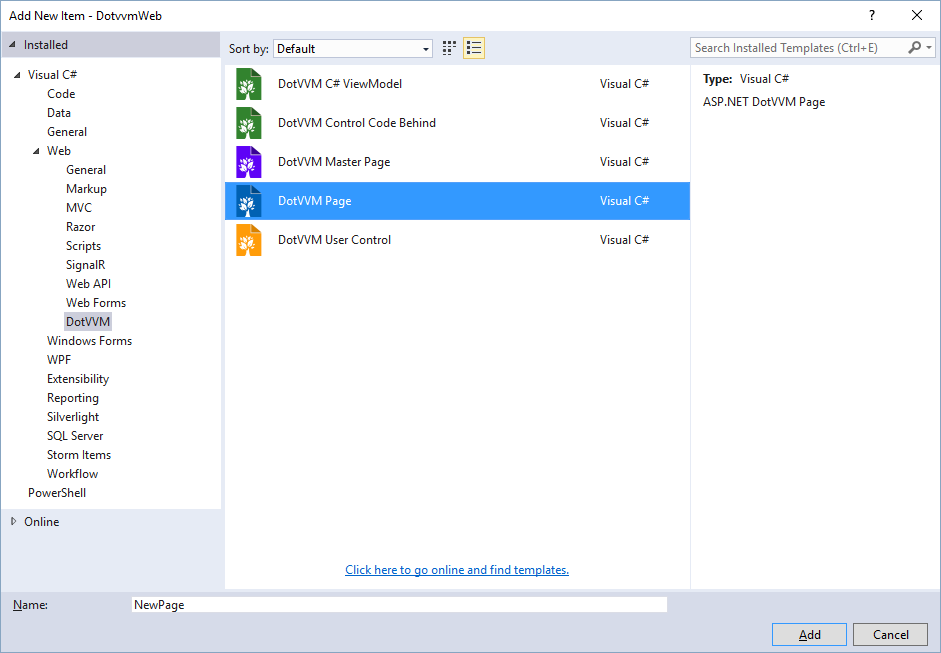
You can start by editing the default page, or choose to add a new page. To create a page in Visual Studio, right-click on the desired folder in the Solution Explorer window and choose Add > New Item....
In the dialog, navigate to the Web / DotVVM section and choose the DotVVM Page template.
After you enter the name of the page and confirm the selection, another window will appear. In this window, you can specify whether you want to create a viewmodel for the page, and where the page should be placed.
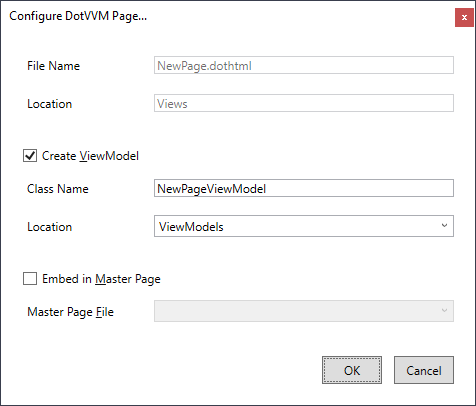
After you proceed, the view and viewmodel files will be added to the project.
Routing and naming conventions
DotVVM pages need to be registered in the route table to be mapped on a particular URL. If you add a new page, you need to add the following registration into the ConfigureRoutes method in DotvvmStartup.cs file.
config.RouteTable.Add("Page", "my/page/url", "Views/page.dothtml", new { });
After doing so, you should be able to access the page by navigating to /Path/To/The/Page in the browser.See the Routing for more info about configuring page routes.
Alternatively, you can configure Route auto-discovery to discover all pages in a particular folder and define a convention to register them automatically.
If the view is placed in the
Viewsfolder, the viewmodel will be automatically placed in theViewModelsfolder. You don't have to follow this convention - some developers prefer to have the views together with viewmodels in the same folder. Feel free to use a different folder structure.